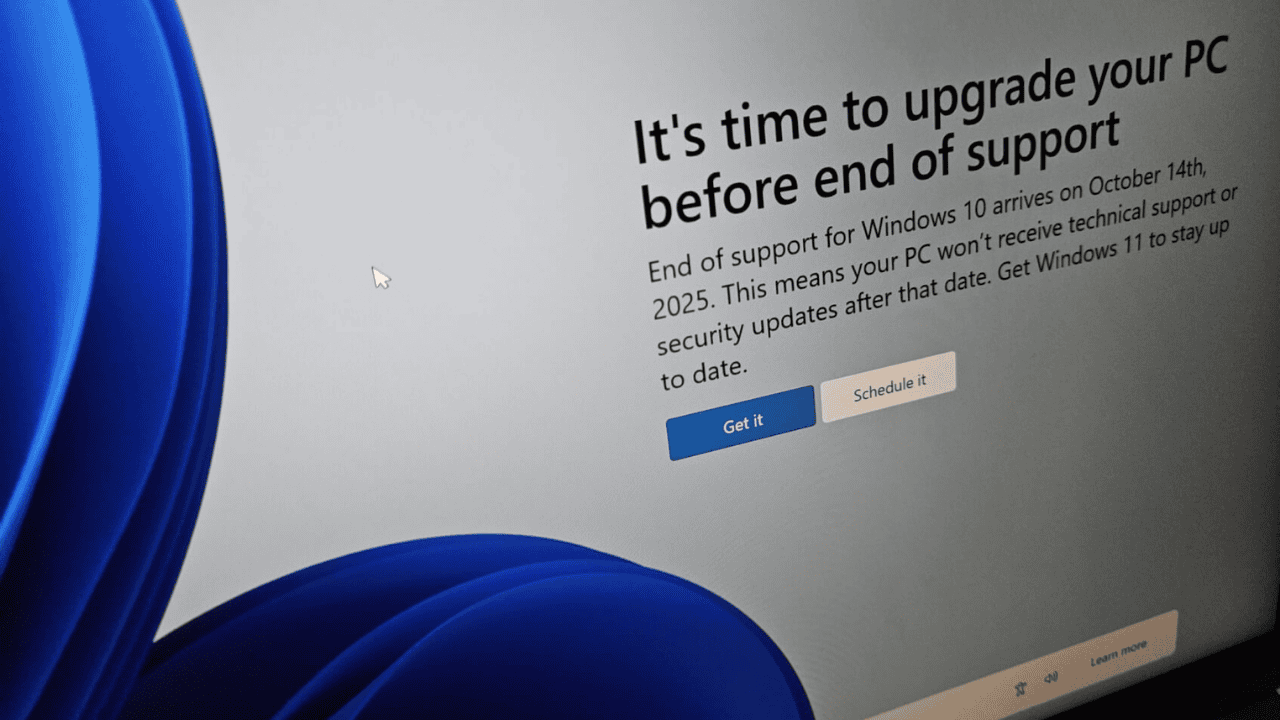
Windows 10 End of Life: A Complete Guide to Staying Secure after October 14, 2025
For over a decade, Windows 10 has been a reliable workhorse for millions. However, Microsoft officially ended support for Windows 10 on October 14, 2025.This marks a significant turning point for users, impacting security, compatibility, and overall system health. This guide provides a comprehensive overview of what this means, who is affected, and – most importantly – how to navigate this transition safely and effectively.
What Does “End of Support” Actually Mean?
When Microsoft ends support for an operating system, it stops providing crucial updates.These include:
* Free Security Updates: Protecting your PC from the latest threats is paramount. Without these, your system becomes increasingly vulnerable.
* Technical Support: Assistance from Microsoft’s support teams will no longer be available.
* Software Updates: Bug fixes and performance improvements will cease, potentially leading to instability and compatibility issues.
Your computer will continue to function, but operating it without these updates is akin to leaving your digital front door unlocked.
Why is This a Critical concern?
The risks associated with running an unsupported operating system are considerable.
* Increased Security Vulnerabilities: Outdated software is a prime target for viruses, malware, and cyberattacks. Hackers actively seek out known vulnerabilities in unsupported systems.
* Compatibility Issues: newer software and hardware may not function correctly – or at all – on an outdated operating system.This can disrupt workflows and limit access to essential tools.
* Data at Risk: A compromised system can lead to data breaches,identity theft,and financial loss.
Ignoring this change isn’t a viable option, especially for businesses handling sensitive information.
Who is Affected by the Windows 10 End of Life?
All versions of Windows 10 are impacted, including:
* Windows 10 Home: The standard version for personal use.
* Windows 10 Pro: Designed for professionals and small businesses.
* Windows 10 enterprise: Tailored for large organizations with advanced security and management needs.
irrespective of your edition, proactive steps are necessary to mitigate the risks.
Assessing Your Options: What Can You Do?
Fortunately, several paths are available. Here’s a breakdown:
* Upgrade to Windows 11: This is Microsoft’s recommended solution. Windows 11 offers enhanced security features, improved performance, and ongoing support.
* Check Compatibility: Use Microsoft’s free PC Health Check app (https://support.microsoft.com/en-us/windows/how-to-use-the-pc-health-check-app-9c8abd9b-03ba-4e67-81ef-36f37caa7844) to determine if your hardware meets the requirements.
* Extended Security Updates (ESU): microsoft offers paid Extended Security Updates (ESU) for Windows 10. This provides security updates for an additional year, until October 13, 2026. ESU is a temporary solution, best suited for organizations needing time to fully migrate to Windows 11.
* Consider Choice Operating Systems: If your hardware isn’t compatible with windows 11, explore alternatives:
* ChromeOS Flex: A lightweight, cloud-based operating system ideal for older hardware. (https://chromeos.google/products/chromeos-flex/)
* Linux Distributions: Various Linux distributions (like Ubuntu, Mint, or Fedora) offer a secure and customizable experience. They are frequently enough compatible with older machines.
Protecting Your Data Before and After the Transition
Data security is paramount. Regardless of the path you choose, take these precautions:
* Back Up Your Data: Before making any changes, create a complete backup of your vital files. use an external hard drive, cloud storage, or a combination of both.
* **Securely Wipe
Keep reading