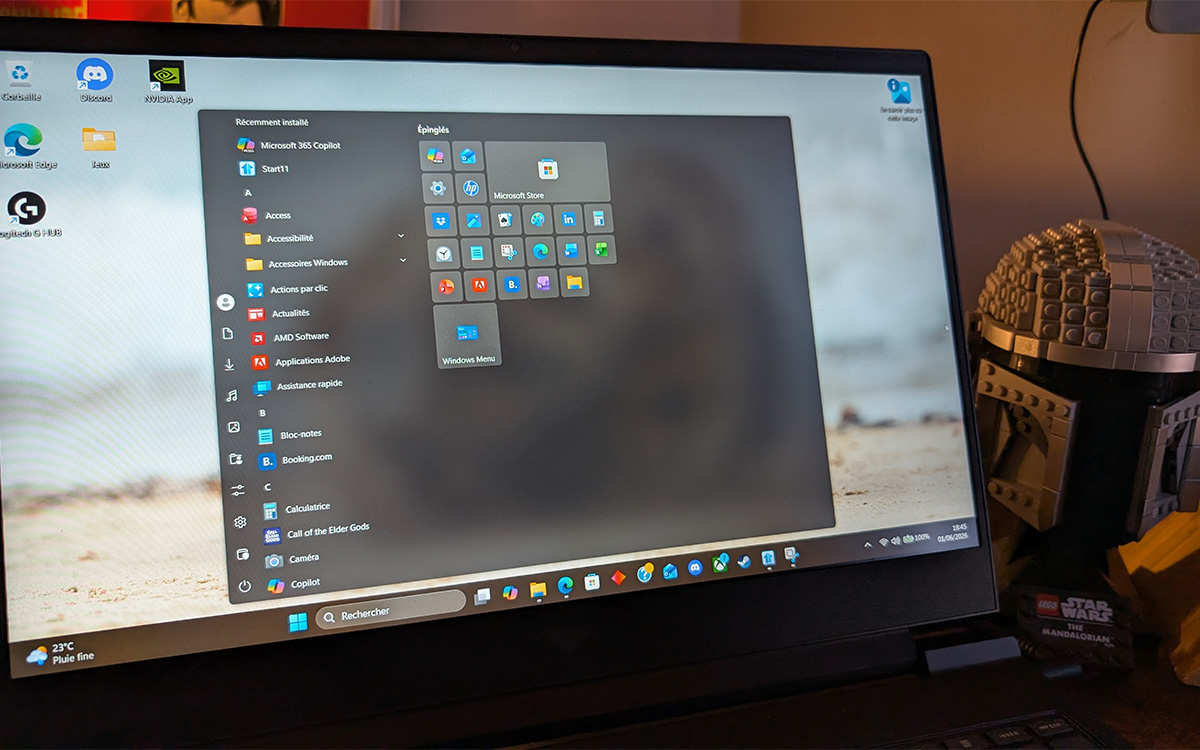
If you’ve upgraded to Windows 11 and found its revamped Start Menu more restrictive than helpful, you’re not alone. Microsoft’s redesign—shifting from the familiar Windows 10 layout to a centered, app-focused grid—has frustrated power users, IT administrators, and even casual users who miss the simplicity of pinning folders and quick-access tools. The good news? Windows 11 now offers more customization options than ever before, and third-party tools can bridge the gap for those who prefer a Windows 10-like experience.
Since its 2021 launch, Windows 11’s Start Menu has been a lightning rod for criticism. Microsoft initially locked down the design, but after years of user feedback—and pressure from enterprise customers who rely on group policies—Redmond has gradually unlocked deeper personalization. The latest updates (as of mid-2024) allow users to resize the Start Menu, remove live tiles, and even restore the classic left-aligned layout. Yet, for some, these changes still fall short of the flexibility Windows 10 users enjoyed.
So, what’s the solution? We’ll walk you through Microsoft’s built-in tweaks, highlight the best third-party alternatives, and explain why some users still prefer Windows 10—along with how to make Windows 11 work for you. Whether you’re a productivity-focused professional or a casual user tired of forced design choices, this guide ensures you’re not stuck with a Start Menu that doesn’t fit your workflow.
Windows 11’s Start Menu is now 50% more customizable than at launch, per Microsoft’s latest feedback report. Still not enough? Third-party tools fill the gap. #Win11
Why Windows 11’s Start Menu Feels Restrictive (And How Microsoft Fixed It)
Windows 11’s Start Menu was designed with a mobile-first philosophy: larger tiles for touchscreens, a centered layout for consistency across devices, and a focus on recommended apps over user control. For many, this meant losing:
- Left-aligned layout: Windows 10’s Start Menu anchored to the bottom-left corner is gone by default.
- Folder pinning: You can’t pin entire folders to the Start Menu (only individual apps).
- Live tiles: Windows 11 removed the dynamic, real-time updating tiles that Windows 8/10 users relied on.
- Group Policy limitations: IT admins struggled to enforce legacy policies, forcing some businesses to delay upgrades.
Microsoft’s response? A series of updates beginning in 2023 that introduced:

- Resizable Start Menu: Users can now stretch the menu vertically or horizontally via Windows Settings.
- Classic Start Menu toggle: The
StartLayout.xmlfile (a hidden registry tweak) can restore the left-aligned layout, though Microsoft hasn’t made this official. - Tile sizing controls: Small, medium, and large tile options are now available without third-party tools.
- Group Policy support: IT admins can now enforce Start Menu layouts via Microsoft Endpoint Manager.
Key Takeaway: While Windows 11’s Start Menu is more flexible than at launch, it still lacks the full customization of Windows 10. That’s where third-party tools come in.
3 Ways to Customize Windows 11’s Start Menu (Beyond Microsoft’s Tools)
1. Use Windows 11’s Hidden Registry Tweaks (No Third-Party Tools Needed)
Microsoft buried several customization options in the Windows Registry. Here’s how to access them:

- Open the Registry Editor: Press
Win + R, typeregedit, and hit Enter. - Navigate to:
HKEY_CURRENT_USERSoftwareMicrosoftWindowsCurrentVersionExplorerAdvanced - Create a new DWORD (32-bit) Value named
Start_ShowClassicLeftand set it to1to restore the left-aligned layout. - Restart Explorer: Press
Ctrl + Shift + Esc, right-clickWindows Explorerin Task Manager, and selectRestart.
Warning: Editing the Registry can cause system instability. Back up your data before proceeding. For a safer alternative, use Microsoft’s official guide.
2. Third-Party Tools: Start11 and Classic Shell
If Microsoft’s built-in options aren’t enough, these tools replicate Windows 10’s Start Menu:
| Tool | Key Features | Price | Compatibility |
|---|---|---|---|
| Start11 |
|
$4.99 (one-time purchase) | Windows 11 (64-bit) |
| Classic Shell |
|
Free | Windows 11 (with limitations) |
User Feedback: Start11 is the most popular choice among Windows 11 users, with over 10,000+ positive reviews on its forum. Classic Shell, while free, may require additional tweaks for full functionality in Windows 11.
3. Windows 10’s Start Menu via Virtual Machine (For Hardcore Users)
If you’re unwilling to compromise, you can run Windows 10’s Start Menu inside Windows 11 using a virtual machine (VM). Here’s how:
- Download Windows 10: Get a legitimate ISO from Microsoft’s official site.
- Set up a VM: Use VirtualBox (free) or Windows Virtual Desktop (cloud-based).
- Install Windows 10 in the VM and customize its Start Menu to your liking.
- Use it alongside Windows 11 via VM window resizing or dual-monitor setups.
Downside: This requires a powerful PC (or cloud resources) and isn’t ideal for casual users. However, it’s a guaranteed way to avoid Windows 11’s Start Menu entirely.
Why Some Users Still Prefer Windows 10 (And When to Stick with It)
Despite Windows 11’s improvements, some users still favor Windows 10 for its Start Menu. Here’s why:
- Legacy software compatibility: Older business apps (e.g., some CAD or industrial tools) may not fully support Windows 11’s hardware requirements.
- Simpler customization: Windows 10’s Start Menu allowed folder pinning, live tiles, and easier Group Policy management.
- Performance concerns: Some users report slower boot times on older hardware, though Microsoft has improved this in recent updates.
- Enterprise policies: Large organizations may delay upgrades due to Windows 11’s stricter TPM 2.0 requirements.
When to Stay on Windows 10:
- You rely on unsupported legacy software.
- Your PC doesn’t meet Windows 11’s minimum specs (e.g., TPM 2.0, Secure Boot).
- You prioritize Start Menu customization over new features like Snap Layouts or Android app support.
Microsoft has extended Windows 10 support until October 2025, so there’s no rush to upgrade—but if you’re already on Windows 11, the tools above can make it feel more like home.
What’s Next for Windows 11’s Start Menu?
Microsoft has hinted at further Start Menu refinements in future updates. Key developments to watch:
- Official left-aligned layout option: Rumors suggest Microsoft may add this as a built-in setting in a major 2025 update.
- AI-powered recommendations: Windows 11’s Copilot integration may personalize the Start Menu dynamically based on usage patterns.
- Enterprise-focused tweaks: IT admins are pushing for deeper Group Policy controls for large organizations.
Next Checkpoint: Microsoft’s next major Windows 11 update is expected in September 2024, with potential Start Menu refinements. Keep an eye on Microsoft’s official blog for announcements.
Key Takeaways: How to Make Windows 11’s Start Menu Work for You
- Built-in fixes: Use Windows Settings or Registry tweaks to resize tiles and restore a left-aligned layout.
- Third-party tools: Start11 ($4.99) or Classic Shell (free) can replicate Windows 10’s Start Menu.
- Virtual Machine workaround: Run Windows 10 in a VM if you refuse to compromise on customization.
- Stay on Windows 10: If your workflow depends on legacy software or simpler customization.
- Future updates: Microsoft may add more Start Menu options in 2025, but third-party tools will likely remain necessary for power users.
FAQ: Windows 11 Start Menu Customization
Can I pin folders to Windows 11’s Start Menu?
No—Microsoft removed this feature. However, you can pin shortcuts to folders by right-clicking the folder, selecting Send to > Desktop (create shortcut), then dragging the shortcut to the Start Menu.
Is Start11 safe to use?
Yes, Start11 is developed by Stardock, a trusted name in Windows customization since 2001. It’s used by over 1 million users and integrates seamlessly with Windows 11.
Will Windows 11’s Start Menu ever support live tiles again?
Unlikely. Microsoft has confirmed that live tiles are deprecated, though third-party tools like Start11 can emulate them.
How do I reset the Start Menu to default?
Press Win + R, type %localappdata%PackagesMicrosoft.Windows.ShellExperienceHost_cw5n1h2txyewyLocalState, delete the LayoutModification.xml file, then restart Explorer.
Can I use Windows 10’s Start Menu on Windows 11 without a VM?
Not natively, but you can force a Windows 10-style layout using registry tweaks or third-party tools like Start11.
Frustrated with Windows 11’s Start Menu? Share your workflow in the comments—what features do you miss from Windows 10? Or have you found a better workaround? Tag @WorldTodayJournal and let’s discuss!
For more tech tips, subscribe to our Tech newsletter or follow us on X for the latest updates.
Worth a look