Master Windows Multitasking & Precision: Hidden Settings for Peak Productivity
Do you find yourself constantly battling window focus in Windows, or struggling with precise cursor control? You’re not alone. Many users unknowingly miss out on powerful accessibility features that can dramatically improve their workflow. This guide unveils two simple, yet impactful, tweaks to help you seamlessly manage multiple windows and achieve pixel-perfect accuracy with your mouse.
Effortless window Switching with “Active on Hover”
Frequently switching between applications like a calculator and your main work window can be frustrating. Windows has a built-in solution that minimizes interruptions and maximizes efficiency.
Here’s how to enable it:
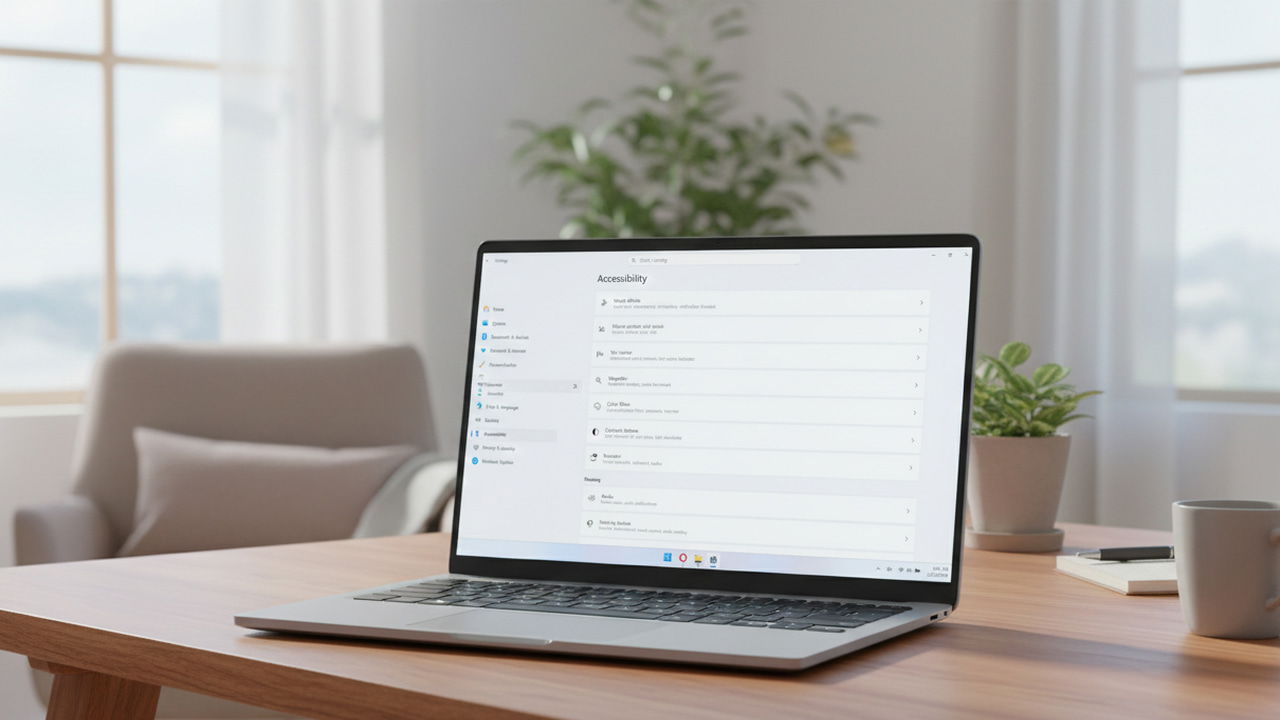
- Navigate to Mouse settings within teh Accessibility options in your Windows settings.
- Activate the Active on hover toggle.
- Set the activation time to “1” (the fastest setting) for instant productivity-boosters-for-teams/” title=”Remote Work Focus: 5 … Boosters for Teams”>window switching.
- Disable the Move window to top option to prevent larger windows from automatically taking focus.
This feature allows you to simply move your cursor over a window to activate it, eliminating the need for constant clicking. It’s a game-changer for anyone who frequently works with multiple applications together.
Achieve Pixel-Perfect Cursor Control
Precise cursor movement isn’t just for graphic designers. It’s incredibly useful for everyday tasks like adjusting sliders or making fine selections. However,achieving pixel-by-pixel control with a traditional mouse can be challenging.
Fortunately, Windows offers a clever solution using keyboard controls.
- Return to the Mouse settings within Accessibility.
- Enable the mouse Keys toggle.
- Customize the cursor speed to your preference.
With Mouse Keys enabled, each key press will move your cursor a single pixel, providing unparalleled precision. This method is notably helpful when you need to make extremely accurate adjustments.
Here’s a quick recap of the benefits:
* Reduced Distractions: Seamless window switching keeps you focused on the task at hand.
* Increased Efficiency: Spend less time fighting your operating system and more time being productive.
* Enhanced Precision: Achieve pixel-perfect cursor control for detailed tasks.
* Improved Accessibility: These features are beneficial for all users,especially those with motor skill challenges.
These seemingly small adjustments can substantially enhance your Windows experience. By leveraging these built-in accessibility features, you’ll find yourself working smarter, not harder. For a deeper dive into all the customization options available, explore the comprehensive range of Accessibility settings within Windows. You might be surprised by what you discover.