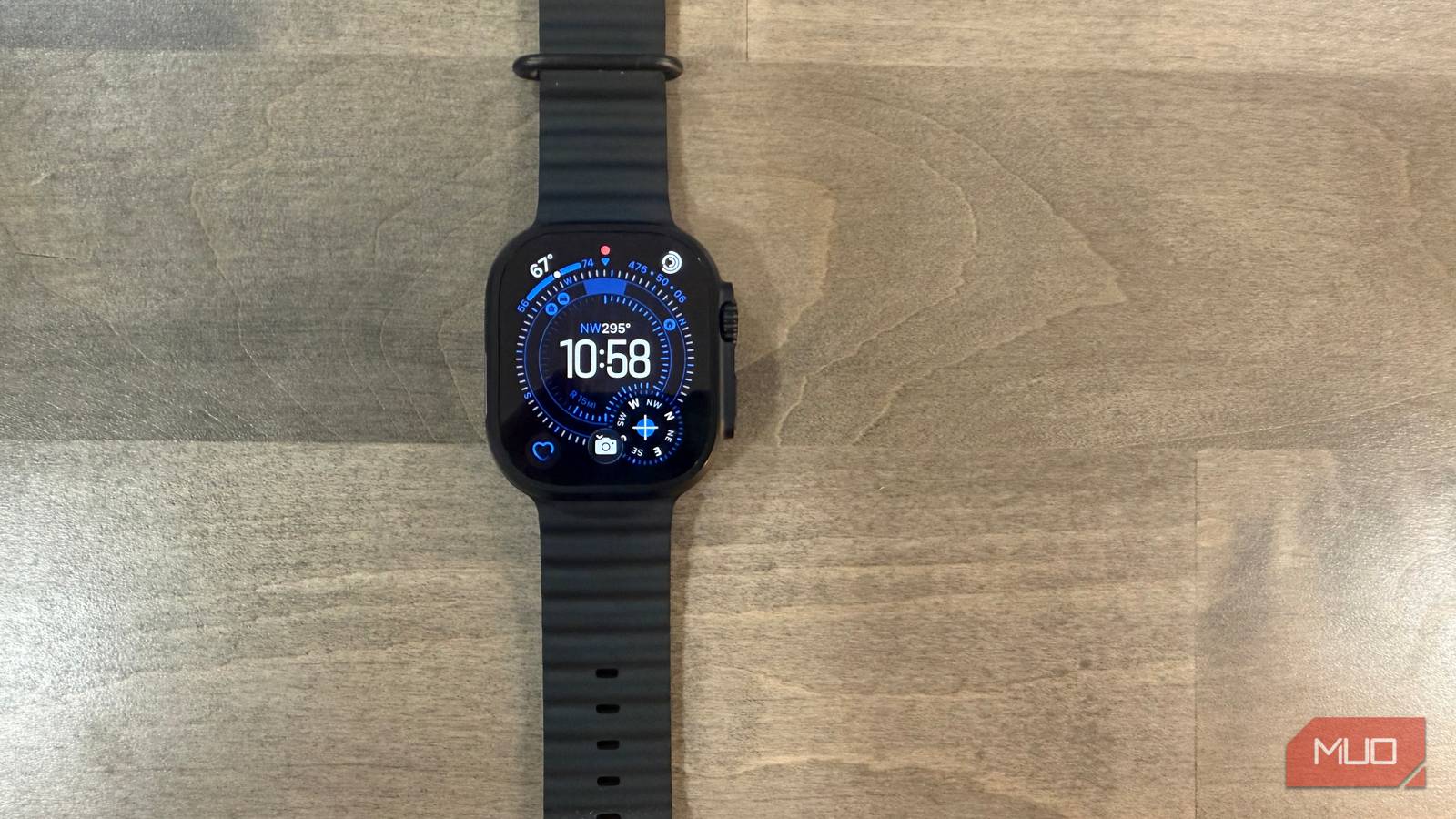
Optimizing Apple Watch battery life often comes down to managing specific background processes rather than hardware limitations. For users experiencing shorter-than-expected battery performance on devices like the Apple Watch Ultra 3, adjusting the Always-On display, cellular connectivity, GPS usage, and complication-heavy watch faces can significantly extend daily runtime, according to Apple’s official support documentation on maximizing battery life.
Understanding Apple Watch Battery Ratings
Apple specifies that the Apple Watch Ultra 3 is designed to provide up to 36 hours of battery life during normal use, with the potential to reach up to 72 hours in Low Power Mode, as detailed in the official technical specifications. When a device fails to meet these benchmarks, the issue is frequently related to software settings and user habits rather than physical battery degradation. Modern watchOS features allow for high-frequency data refreshing, which can tax the device’s power reserves over a 24-hour period.

Managing Display and Connectivity Settings
The Always-On display is a primary contributor to battery drain. By navigating to Settings > Display & Brightness, users can toggle the “Always On” feature to off. This adjustment forces the display to remain dark until the user raises their wrist, reducing the power required to keep the screen active throughout the day.
Additionally, cellular connectivity significantly impacts power consumption. When an Apple Watch is separated from a paired iPhone, it automatically switches to cellular networks to maintain connectivity. If cellular is not required at all times, users can disable the cellular connection in the Control Center or via Settings > Cellular to prevent the watch from searching for signal, which is a known high-drain activity.
Optimizing Watch Faces and Background Data
Watch faces populated with numerous “complications”—the small widgets that display weather, stock prices, or calendar events—frequently request updates from the internet. Each update requires a data transmission, which consumes battery. Simplifying the watch face by removing unnecessary complications can reduce the frequency of these background processes. Apple provides guidance on managing these features through the Watch app on the iPhone, where users can customize which data is pushed to the device.
Impact of GPS and Activity Tracking
Continuous GPS tracking during outdoor workouts is one of the most power-intensive tasks an Apple Watch performs. While the Ultra series is built for endurance, using high-precision GPS settings for extended periods will naturally decrease total battery life. To mitigate this, users can review their workout settings in the Workout app to ensure GPS is only active when necessary. For users who track sleep, charging the device for a short period before bed—often referred to as “top-up charging”—can ensure the watch has sufficient power to monitor health metrics overnight without triggering a low-battery notification in the morning.
Next Steps for Users
Apple regularly releases watchOS updates that include improvements to power efficiency. Users are encouraged to check for the latest software version by navigating to Settings > General > Software Update on their Apple Watch or through the Watch app on their iPhone. Keeping software current remains the most effective way to ensure that power management algorithms are functioning as intended by the manufacturer.
Have you found a specific setting that makes the biggest difference in your daily battery usage? Share your experiences in the comments below.