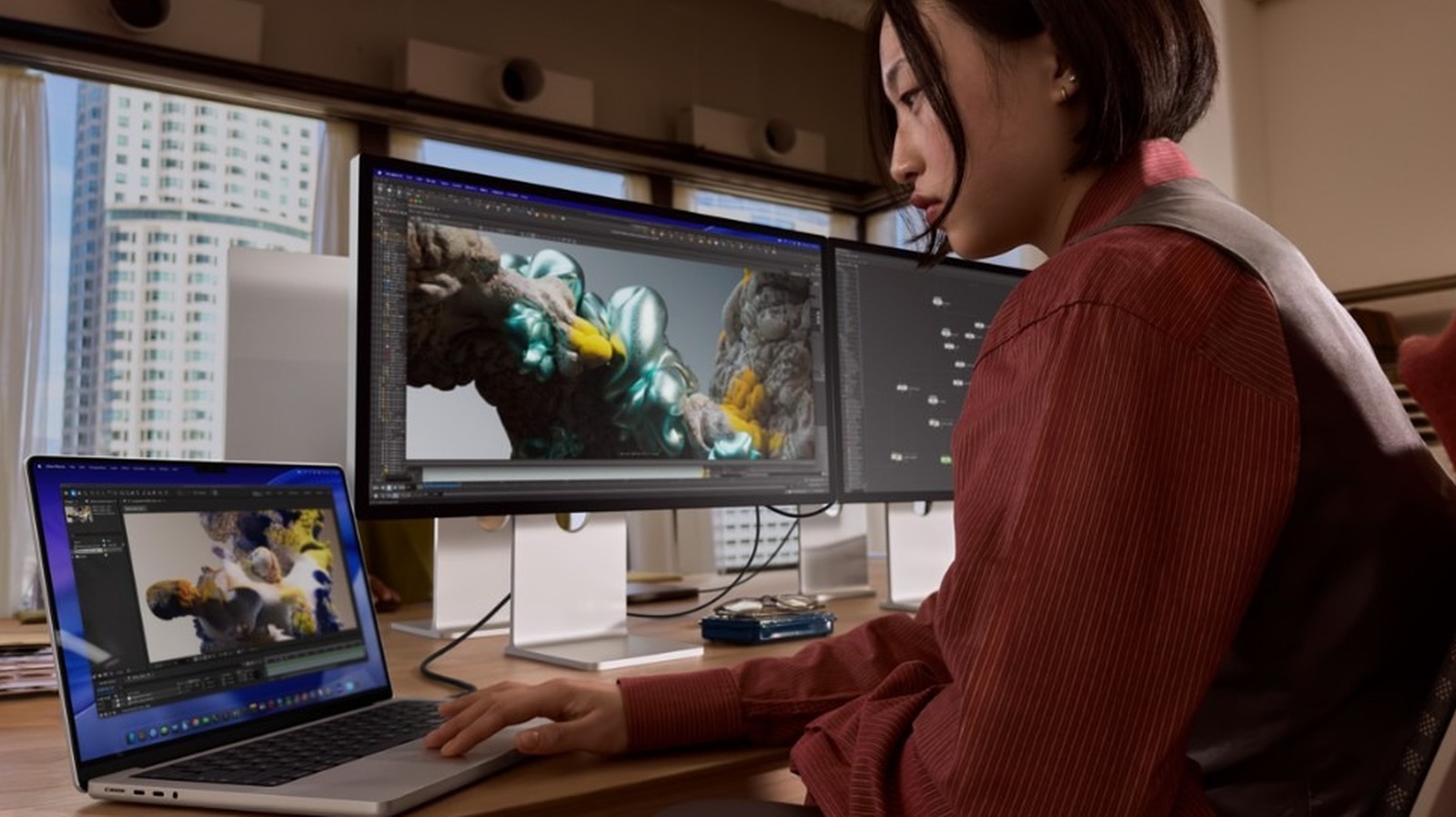
Selecting the right peripheral for a macOS environment involves more than just picking a panel with high resolution. For creative professionals, developers, and everyday Mac users, the integration between hardware and software—specifically how the display handles color accuracy, refresh rates, and connectivity—is paramount. As we navigate the current landscape of display technology, identifying 5 of the best monitors for Mac users requires an understanding of how Apple Silicon and macOS interact with external hardware.
When searching for the ideal workspace setup, Mac users often prioritize features like high pixel density, which ensures that macOS’s Retina scaling functions correctly, and robust USB-C or Thunderbolt connectivity to reduce cable clutter. Finding a display that supports these requirements while maintaining color consistency is essential for high-end workflows. In this guide, we explore top-tier options that have become industry standards for Mac-based workstations.
Understanding Retina Scaling and Connectivity
The primary challenge for Mac users when shopping for external displays is the way macOS handles resolution. Unlike Windows, which scales the interface based on a percentage, macOS expects a high pixel density—typically around 218 pixels per inch (PPI)—to achieve its signature “Retina” crispness. Monitors that fall significantly below this density can often lead to UI elements appearing either too small or slightly blurry, as the operating system struggles to map pixels effectively. According to Apple’s official support documentation, using a display with a high-resolution output is critical for maintaining visual fidelity on macOS devices.
the shift toward USB-C and Thunderbolt 3/4 has simplified the connection process. A single-cable solution that provides power delivery (charging your MacBook) while simultaneously transmitting data and video signals is now the gold standard. When selecting a monitor, it is vital to verify the wattage of the Power Delivery (PD) port to ensure it can adequately charge your specific MacBook model during heavy usage.
Top 5 Displays for the Apple Ecosystem
While many monitors on the market are compatible with Mac, few are optimized for the specific requirements of the Apple ecosystem. The following five options stand out for their build quality, color accuracy, and seamless integration with macOS.
- Apple Studio Display: Designed specifically for macOS, this 27-inch 5K display offers a 218 PPI density, ensuring that the macOS interface looks identical to a built-in iMac or MacBook screen. It includes a built-in A13 Bionic chip to power features like Center Stage for the webcam and spatial audio, as detailed in the official technical specifications.
- Dell UltraSharp U2723QE: This monitor is highly regarded for its “IPS Black” technology, which provides significantly better contrast ratios than standard IPS panels. It features extensive connectivity, including an integrated USB-C hub that supports up to 90W of power delivery, making it an excellent choice for MacBook Pro users.
- LG UltraFine 5K Display: Developed in close collaboration with Apple, this monitor remains a benchmark for macOS users. It provides a direct hardware-level integration, allowing users to control brightness and volume directly from the macOS menu bar or keyboard, a feature rarely found in third-party monitors.
- BenQ PD3220U: Targeted at designers, this 32-inch 4K monitor includes a dedicated “M-Book” mode, which is specifically calibrated to match the color profile of MacBook displays. It also includes a Hotkey Puck that allows for quick adjustments, which many power users find indispensable for color-critical work.
- Samsung ViewFinity S9: As a direct competitor to the Studio Display, the S9 offers a 5K resolution and a matte display coating that excels in bright office environments. Its internal calibration tools allow users to fine-tune the display using an iPhone, providing a unique bridge between Apple’s mobile and desktop hardware.
Why Color Accuracy Matters for Mac Users
For those involved in photography, videography, or graphic design, the P3 wide color gamut is a non-negotiable requirement. MacOS is built to leverage the Display P3 color space, which offers a wider range of colors than the traditional sRGB standard. When choosing a monitor, it is vital to check if the panel supports at least 95% or higher of the DCI-P3 color space. As noted by the International Organization for Standardization (ISO) regarding color management, consistent calibration across the entire workflow is the only way to ensure that what you see on screen is what will appear in the final output.
Optimizing Your Setup for Productivity
Beyond the display itself, the physical placement and the use of dedicated software can drastically improve your workflow. Many professional Mac users utilize tools like BetterDisplay or SwitchResX to gain finer control over HIDPI (High Dots Per Inch) settings, especially when using monitors that do not have a 5K resolution. These utilities can help “trick” macOS into rendering at a higher resolution and scaling down, which provides a sharper image on 4K monitors that might otherwise look less than ideal.

If you are planning to upgrade your workstation, the next major update cycle for Apple’s professional hardware is expected later this year. We encourage readers to check the Apple Newsroom for the latest official announcements regarding hardware compatibility and new display technologies. If you have questions about specific monitor configurations or need help with a particular setup, feel free to leave a comment below or share this guide with your creative team.
Worth a look