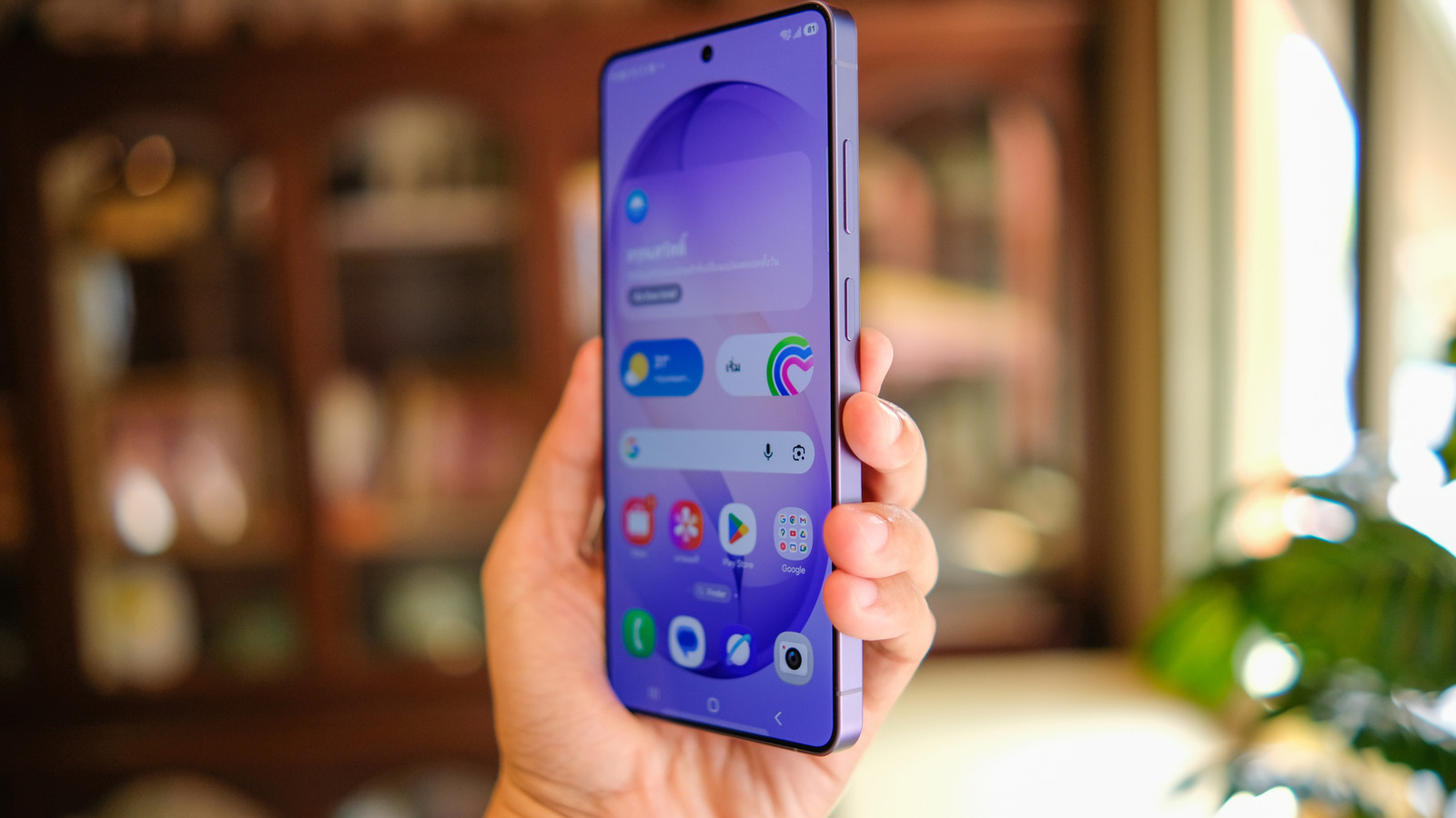
Automating your morning routine on a Samsung Galaxy device can significantly streamline how you start your day by using the built-in Modes and Routines feature. By configuring specific triggers—such as the time you wake up or when your alarm is dismissed—your smartphone can automatically adjust settings like brightness, volume, and app access, according to Samsung’s official support documentation. This functionality shifts the phone from a passive tool to an active assistant, reducing the need for manual adjustments during your first hour of the day.
How to Configure Modes and Routines
The core of Samsung’s automation capabilities lies within the Modes and Routines menu, located in the Settings app under the “Modes and Routines” tab. This software, which has been a staple of the One UI interface for several generations, allows users to set “If” and “Then” conditions. For instance, you can create a routine where, upon the dismissal of your morning alarm, the device automatically triggers a specific set of actions. According to Samsung, these can include turning off Wi-Fi, launching a news or weather application, or adjusting the blue light filter.
To begin, navigate to Settings, select “Modes and Routines,” and tap the “Routines” tab. From there, you can tap the plus (+) icon to create a custom automation. The “If” section allows you to choose a trigger, such as a specific time of day or a status change, like when your device connects to a home Bluetooth speaker. The “Then” section defines the outcome, such as setting the media volume to a comfortable level or enabling “Do Not Disturb” mode to prevent early-morning distractions.
Optimizing Your Morning Workflow
Beyond simple settings, you can use these automations to manage your digital well-being. By setting a routine to activate “Grayscale” or “Eye Comfort Shield” immediately upon waking, you can reduce the strain associated with high-intensity display brightness in low-light environments. This is particularly useful for users who check their devices immediately after waking, as it minimizes blue light exposure, a factor often linked to disrupted circadian rhythms by health organizations like the Sleep Foundation.
Furthermore, integrating your smart home ecosystem is a key advantage of the Samsung Galaxy platform. If you have SmartThings-compatible devices, your morning routine can extend beyond the phone. You can configure your Galaxy device to turn on smart lights, start a coffee maker, or adjust your thermostat the moment your morning alarm stops. This level of integration relies on the SmartThings platform, which acts as a centralized controller for connected hardware within your home.
Advanced Automation Tips
For power users, Samsung offers “Modes,” which are broader than routines. While a routine is triggered by a specific event, a Mode acts like a profile that stays active until you manually turn it off or set a specific end time. A “Morning Mode” can be configured to keep your phone in a restricted state—limiting notifications to only essential contacts—until a predetermined time, such as when you typically leave for work. This helps maintain focus during your morning commute or breakfast.
It is important to note that these automations require the device to be running a current version of One UI. Samsung typically releases software updates for its flagship and mid-range devices throughout their support lifecycle, which is detailed on the Samsung Security Updates page. Ensuring your device is updated is essential for accessing the latest automation triggers and stability patches provided by the manufacturer.
Next Steps for Device Management
Samsung frequently updates its One UI software, which often introduces new automation triggers and enhanced integration with third-party applications. Users interested in staying updated on these features should monitor the Samsung Newsroom for announcements regarding upcoming software versions and feature drops. As the ecosystem continues to evolve, the ability to automate routine tasks will likely become more intuitive, reducing the manual effort required to manage a modern digital workspace.
If you have questions about specific routines or encounter issues with triggers not firing as expected, you can access the “Contact Us” section within the Samsung Members app for direct support. Feel free to share your own favorite morning automation configurations in the comments below.
Worth a look