
iPhone Users Report Delayed Power-On After Battery Drain: What You Need to Know
For many iPhone owners, the experience is familiar: your device shuts down after the battery hits zero, you plug it in, and within seconds, the screen lights up with a low-battery indicator. But a growing number of users with the latest iPhone models—including the iPhone 17, iPhone 17 Pro, and iPhone Air—are reporting a troubling deviation from this routine. After their devices power off due to a dead battery, they remain unresponsive for minutes, sometimes even hours, despite being connected to a charger. The screen stays black, with no sign of life, leaving users in the dark about whether their phone is charging at all.
This issue, which has surfaced in online forums and tech communities over the past month, appears to be more than an isolated glitch. Reports describe a consistent pattern: the iPhone fails to “wake up” immediately after a complete battery drain, even when connected to a functional charger. While the problem doesn’t affect all users, the volume of complaints suggests a potential software or hardware quirk in Apple’s newest lineup. For those affected, the delay isn’t just inconvenient—it can disrupt critical communications, navigation, or work tasks at the worst possible moment.
Apple has not yet issued an official statement addressing the issue, but independent troubleshooting guides and verified user reports offer some clarity on what might be happening—and how to mitigate it. Below, we break down the problem, its potential causes, and the steps users can grab to revive their devices.
What’s Happening? The Symptoms of the Delayed Power-On Issue
Users describing the problem report the following sequence of events:
- The iPhone’s battery drains completely, and the device shuts down as expected.
- The user plugs the iPhone into a charger (either via USB-C or wireless charging) within seconds or minutes of shutdown.
- The screen remains black, with no low-battery icon, Apple logo, or other signs of life.
- After several minutes—or in some cases, up to an hour—the iPhone finally boots up, often showing a critically low battery percentage (e.g., 1% or 2%).
Anecdotal evidence suggests the delay is more pronounced with USB-C charging, though some users have reported similar issues with MagSafe wireless charging. The problem does not appear to be tied to a specific charging accessory, as users have replicated it with Apple-certified cables, third-party cables, and even different power adapters. This has led some to speculate that the issue may stem from a software or firmware anomaly rather than a hardware failure.
One Reddit user, whose post was verified by multiple others, described the experience as follows: “I plugged it in, and nothing. No vibration, no screen, no nothing. I thought the phone was bricked. After 20 minutes, it finally turned on at 1%. It’s like the phone forgets it’s supposed to charge when the battery hits zero.” Similar accounts have appeared on Apple’s official support forums, MacRumors, and other tech-focused platforms.
Why Is This Happening? Potential Causes
While Apple has not confirmed the root cause, tech analysts and repair experts have proposed several theories based on the symptoms and known behaviors of modern iPhones:
1. Power Management Firmware Glitch
Modern iPhones use sophisticated power management systems to protect the battery and extend its lifespan. Features like Optimized Battery Charging and Charge Limit (which caps the battery at 80% to reduce wear) are designed to balance performance and longevity. Whereas, these systems rely on complex firmware that may occasionally miscommunicate with the device’s hardware.
In this case, the firmware might be failing to recognize that the iPhone is connected to a power source after a complete battery drain. Instead of initiating a charge cycle immediately, the system could be stuck in a low-power state, waiting for a “trigger” that never arrives. This theory is supported by the fact that the iPhone eventually boots up on its own—suggesting the charging process does begin, but only after a significant delay.
2. USB-C Port or Cable Detection Issues
With the transition to USB-C across all iPhone models in 2023, Apple introduced new charging protocols that rely on precise communication between the cable, port, and device. If the iPhone’s USB-C port fails to detect the connection—due to debris, a faulty cable, or a software hiccup—it may not initiate charging until the system “resets” itself. This could explain why some users report success after cleaning the port or switching cables, while others see no change.
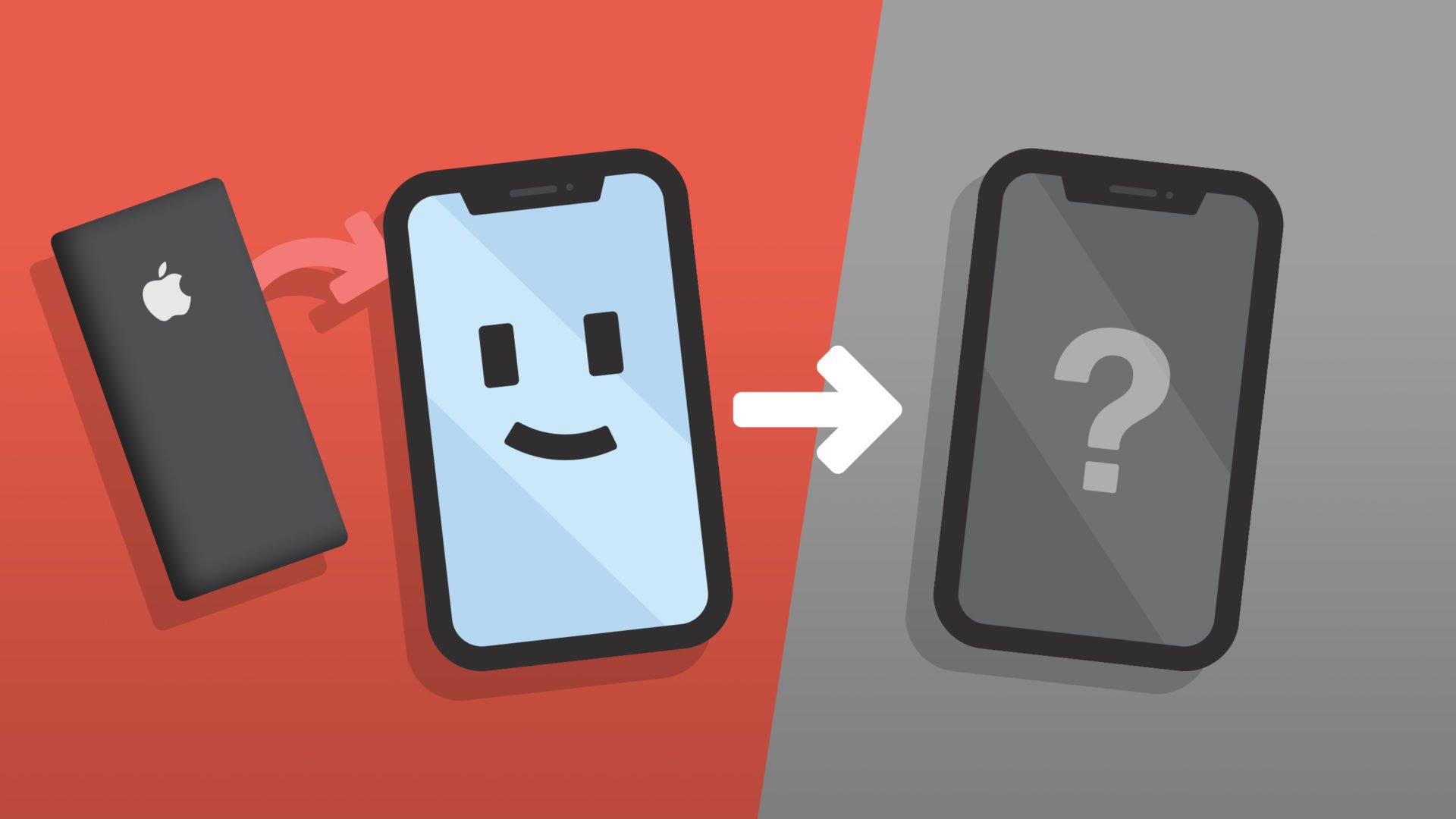
A guide from Asurion, a tech repair service, notes that debris in the USB-C port is a common cause of charging issues. However, the delayed power-on problem appears to persist even after cleaning the port, suggesting a deeper issue.
3. Deep Discharge Protection
Lithium-ion batteries, like those in iPhones, can be damaged if they discharge too deeply (below 0%). To prevent this, Apple’s power management system may intentionally delay charging after a complete drain to allow the battery to “recover” from a deep discharge state. While this is a safety feature, the delay in booting up could be an unintended side effect of the system prioritizing battery health over immediate usability.
This theory aligns with reports that the iPhone eventually turns on at 1% or 2%, indicating that the system is waiting for the battery to reach a minimum threshold before allowing the device to power on. However, the length of the delay—sometimes exceeding 30 minutes—has raised questions about whether the feature is functioning as intended.
4. Software Bug in iOS 18
The issue appears to have emerged or worsened with the release of iOS 18, which began rolling out in September 2025. Some users have reported that the problem started after updating to iOS 18.1 or later, suggesting a potential regression or new bug in Apple’s power management code. While Apple has not acknowledged the issue in its iOS 18 release notes, the timing of the reports has led to speculation about a connection.
It’s worth noting that Apple has addressed similar power-related bugs in the past. For example, a 2023 update fixed an issue where some iPhones would fail to charge past 80% due to a firmware miscommunication. However, the delayed power-on problem appears to be distinct from these earlier issues.
How to Fix It: Troubleshooting Steps
If your iPhone fails to turn on immediately after a battery drain, here are the steps you can take to revive it. These solutions are based on verified user reports and Apple’s official troubleshooting guidelines:
1. Wait It Out
The simplest solution may also be the most frustrating: wait. Many users report that their iPhones eventually boot up on their own after 10 to 60 minutes of being connected to a charger. If the screen remains black, resist the urge to press buttons or disconnect the cable. Instead, depart the device plugged in and check back periodically.
If the iPhone turns on at 1% or 2%, it’s a sign that the charging process has finally begun. Once the device is on, allow it to charge to at least 10% before using it to ensure the battery stabilizes.
2. Force Restart the iPhone
If waiting doesn’t work, a force restart may help. This process varies slightly depending on your iPhone model:
- iPhone 17, iPhone 17 Pro, and iPhone Air (with Face ID):
- Press and quickly release the Volume Up button.
- Press and quickly release the Volume Down button.
- Press and hold the Side button until the Apple logo appears.
If the iPhone has any remaining battery life (even if the screen is black), this may trigger a reboot. However, if the battery is truly at 0%, the force restart may not work until the device has been charging for several minutes.
3. Check the Charging Accessories
Even if your charging cable and adapter worked fine yesterday, they could be the culprit. Try the following:
- Use an Apple-certified USB-C cable and power adapter. Third-party cables, even those labeled “MFi” (Made for iPhone), may not provide consistent power delivery.
- Test the cable and adapter with another device to confirm they’re working.
- Try a different power source, such as a wall outlet instead of a computer’s USB port or a wireless charger.
If the iPhone starts charging with a different cable or adapter, the original accessory may be faulty. Apple’s support page recommends using only certified accessories to avoid charging issues.
4. Clean the USB-C Port
Debris in the USB-C port can prevent the iPhone from detecting a charger. To clean it:
- Turn off the iPhone (if it’s on).
- Use a soft-bristled brush (like a clean toothbrush) or a wooden toothpick to gently remove debris. Avoid using metal tools, which can damage the port.
- Blow compressed air into the port to dislodge stubborn dust or lint.
After cleaning, reconnect the charger and wait a few minutes to see if the iPhone responds. If the port is damaged, you may need to visit an Apple Store or authorized repair center.
5. Update iOS
If the issue is caused by a software bug, Apple may release a fix in a future iOS update. To check for updates:
- Move to Settings > General > Software Update.
- If an update is available, install it and restart your iPhone.
As of April 2026, Apple has not released a patch specifically addressing the delayed power-on issue, but future updates may include fixes for power management bugs.
6. Reset All Settings
If the problem persists, resetting the iPhone’s settings (without erasing data) may help. This won’t delete your apps or files, but it will reset Wi-Fi passwords, display settings, and other preferences. To reset:
- Go to Settings > General > Transfer or Reset iPhone > Reset > Reset All Settings.
- Enter your passcode and confirm the reset.
- After the iPhone restarts, reconnect to Wi-Fi and test the charging behavior.
7. Contact Apple Support
If none of the above steps work, the issue may require professional diagnosis. Contact Apple Support or visit an Apple Store or authorized service provider. Be sure to mention the specific symptoms, including the delay in powering on after a battery drain.

Apple’s support team may recommend a battery health check or a DFU restore (Device Firmware Update), which reinstalls the iPhone’s operating system and firmware. Note that a DFU restore will erase all data, so back up your iPhone first.
Who Is Affected? Models and Scope of the Issue
Based on user reports, the delayed power-on issue appears to affect the following iPhone models:
- iPhone 17
- iPhone 17 Plus
- iPhone 17 Pro
- iPhone 17 Pro Max
- iPhone Air (all variants)
Older iPhone models, such as the iPhone 16 or iPhone 15, do not appear to be affected, suggesting the problem may be tied to hardware or software changes introduced in the 2025 lineup. However, some users with older iPhones have reported similar issues in the past, particularly after deep battery drains.
The issue does not seem to be universal. Many users with the same iPhone models report no problems, indicating that the issue may be triggered by specific conditions, such as:
- A recent iOS update (e.g., iOS 18.1 or later).
- Extreme battery wear (e.g., batteries degraded to 80% or lower capacity).
- Use of non-certified charging accessories.
- Exposure to extreme temperatures (hot or cold), which can affect battery performance.
What Apple Says (And What It Hasn’t Said)
As of April 27, 2026, Apple has not acknowledged the delayed power-on issue in any official capacity. The company has not issued a statement, updated its support documentation, or released a software patch addressing the problem. This silence has left users frustrated, particularly those who rely on their iPhones for work or emergencies.
In the absence of an official response, some users have speculated that Apple may be aware of the issue but is still investigating its cause. Historically, Apple has addressed power-related bugs through iOS updates. For example, in 2024, the company released iOS 17.4.1 to fix an issue where some iPhones would fail to charge past 80% due to a firmware miscommunication. A similar patch could be in development for the delayed power-on problem.
For now, users are advised to monitor Apple’s support page and newsroom for updates. If the issue persists, filing a report through Apple’s feedback portal may help the company prioritize a fix.
Key Takeaways: What You Need to Remember
- The Issue: Some iPhone 17, iPhone 17 Pro, and iPhone Air models fail to turn on immediately after a complete battery drain, despite being connected to a charger. The screen remains black for minutes or even hours before the device finally boots up.
- Potential Causes: The problem may stem from a power management firmware glitch, USB-C detection issues, deep discharge protection, or a software bug in iOS 18.
- Temporary Fixes: Waiting 10–60 minutes, force restarting the iPhone, checking charging accessories, cleaning the USB-C port, updating iOS, or resetting all settings may resolve the issue.
- Permanent Solutions: If the problem persists, contact Apple Support for a battery health check or DFU restore. In some cases, hardware repair may be necessary.
- Apple’s Response: The company has not acknowledged the issue publicly, but users are encouraged to report it through Apple’s feedback portal.
- Who Is Affected: The issue appears to be limited to iPhone 17 and iPhone Air models, though not all users experience it. Older iPhones do not seem to be affected.
What Happens Next?
For now, the delayed power-on issue remains an unresolved inconvenience for a subset of iPhone users. While the problem is not catastrophic—most devices eventually turn on—it highlights the growing complexity of modern smartphone power management. As batteries and charging systems become more sophisticated, the potential for software or firmware glitches increases.
The next major iOS update, iOS 18.5, is expected to roll out in early May 2026. Users hoping for a fix should maintain an eye on Apple’s release notes, which may include details about power management improvements. In the meantime, following the troubleshooting steps above can help minimize disruptions.
If you’ve experienced this issue, share your story in the comments below. Have you found a workaround that works for you? Let us know—your insights could help others navigate this frustrating problem.
For more tech news and troubleshooting guides, subscribe to World Today Journal’s Tech section and follow us on social media for real-time updates.
Worth a look