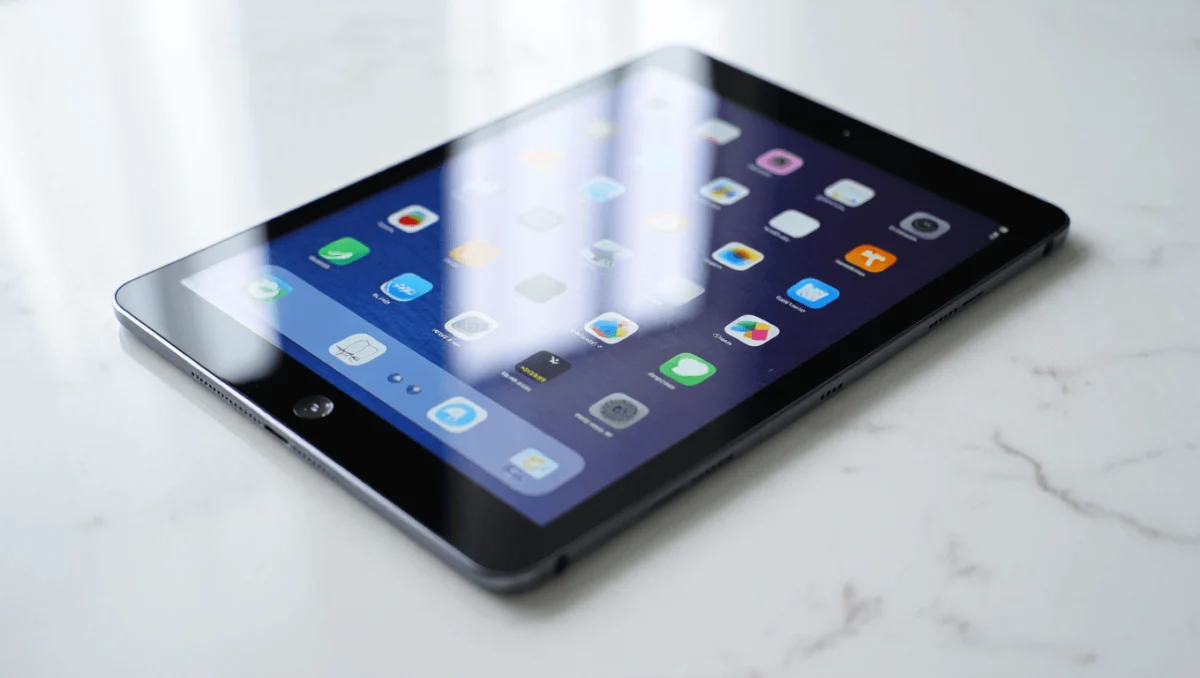
New iPad users can optimize their workflow by mastering ten essential functions, including Stage Manager for multitasking, Apple Pencil integration, and advanced gesture controls. According to Apple Support, these features allow the tablet to transition from a simple media consumption device to a productivity tool capable of handling complex professional tasks.
The shift toward using iPads as primary computers has accelerated with the introduction of iPadOS. This software layer introduces desktop-class features that differ significantly from the standard iOS experience found on iPhones. Understanding the nuances of file management and windowing is now critical for anyone attempting to replace a laptop with a tablet.
For those setting up a new device, the initial configuration involves more than just signing into an iCloud account. Proper optimization of the Control Center and the implementation of Focus modes can reduce digital distractions and improve battery efficiency, which is a primary concern for mobile professionals.
Optimizing Multitasking with Stage Manager and Split View
Stage Manager represents a fundamental shift in how iPad users interact with multiple applications. According to Apple’s official product documentation, Stage Manager allows users to overlap windows and create flexible workspaces. Instead of being locked into a rigid split-screen, users can resize windows and group apps together to switch between different projects instantly.
For users on models that do not support Stage Manager, Split View remains the primary method for productivity. By dragging an app from the Dock to the edge of the screen, users can run two applications side-by-side. This is particularly useful for referencing a website while typing in a document or monitoring a video call while taking notes.
Slide Over provides a third layer of multitasking. This feature allows a small, floating window to sit atop the main application. Users can swipe this window away to the edge of the screen and bring it back with a quick gesture, making it ideal for quick replies in messaging apps without leaving the primary work environment.
Mastering Apple Pencil and Input Precision
The Apple Pencil transforms the iPad from a tablet into a digital sketchbook and notebook. According to technical specifications from Apple, the Pencil supports pressure sensitivity and tilt, which are essential for artists and architects. One of the most efficient functions for new users is “Scribble,” which converts handwritten text into typed text in any text field.

Users can also utilize the “Quick Note” feature by swiping up from the bottom right corner of the screen with the Apple Pencil. This action opens a small notepad immediately, regardless of which app is currently open. This reduces the friction of capturing ideas and ensures that information is saved directly to the Notes app.
For those using a Magic Keyboard or a Bluetooth keyboard, mastering keyboard shortcuts is the fastest way to increase speed. Pressing Command-Space opens Spotlight Search, allowing users to find files or launch apps without navigating the home screen. Command-Tab allows for rapid switching between the most recently used applications, mimicking the workflow of macOS.
Efficient File Management and Cloud Integration
The Files app is the central hub for data on the iPad. According to Apple’s user guide, the Files app supports not only iCloud Drive but also third-party cloud services like Google Drive and Dropbox. New users should prioritize setting up these integrations to ensure a seamless flow of data between different operating systems.
Drag-and-drop functionality is a key productivity multiplier. Users can hold a piece of text or an image in one app and drag it directly into another. For example, a user can drag a photo from the Photos app directly into an email draft or a Pages document, eliminating the need for the traditional “copy and paste” menu.
External storage support via USB-C ports on newer iPad Pro and Air models allows for the connection of SSDs and flash drives. This is vital for photographers and videographers handling large 4K files that would otherwise consume the device’s internal storage.
Customizing the User Experience and Security
The Control Center can be tailored to include the tools a user needs most. By navigating to Settings, users can add shortcuts for Screen Recording, Low Power Mode, and Dark Mode. This ensures that essential system toggles are accessible with a single swipe from the top-right corner of the screen.

Security is managed through Face ID or Touch ID, depending on the model. Beyond biometric unlocking, these systems integrate with “Passkeys,” a new security standard that replaces traditional passwords with cryptographic keys. According to Apple’s security whitepapers, this reduces the risk of phishing attacks by removing the need for a shareable password.
Focus modes allow users to filter notifications based on their current activity. A “Work” focus can be configured to only allow notifications from colleagues and professional apps, while a “Personal” focus can mute work-related alerts during evening hours. This level of control is necessary for maintaining a work-life balance when the device serves as both a workstation and an entertainment center.
| Feature | Standard iPadOS | Stage Manager (M-series/Air) |
|---|---|---|
| Windowing | Full screen or Split View | Overlapping, resizable windows |
| App Switching | App Switcher grid | Side-bar recent apps |
| Workflow | Linear/Single-task focus | Multi-app workspace grouping |
As Apple continues to update iPadOS, the line between the tablet and the Mac continues to blur. Users should keep their software updated to the latest version to access new accessibility features and security patches. The next major set of feature updates is typically announced during the Worldwide Developers Conference (WWDC) in June.
Share your experience with the iPad’s productivity features in the comments below or let us know which function you find most useful for your daily workflow.