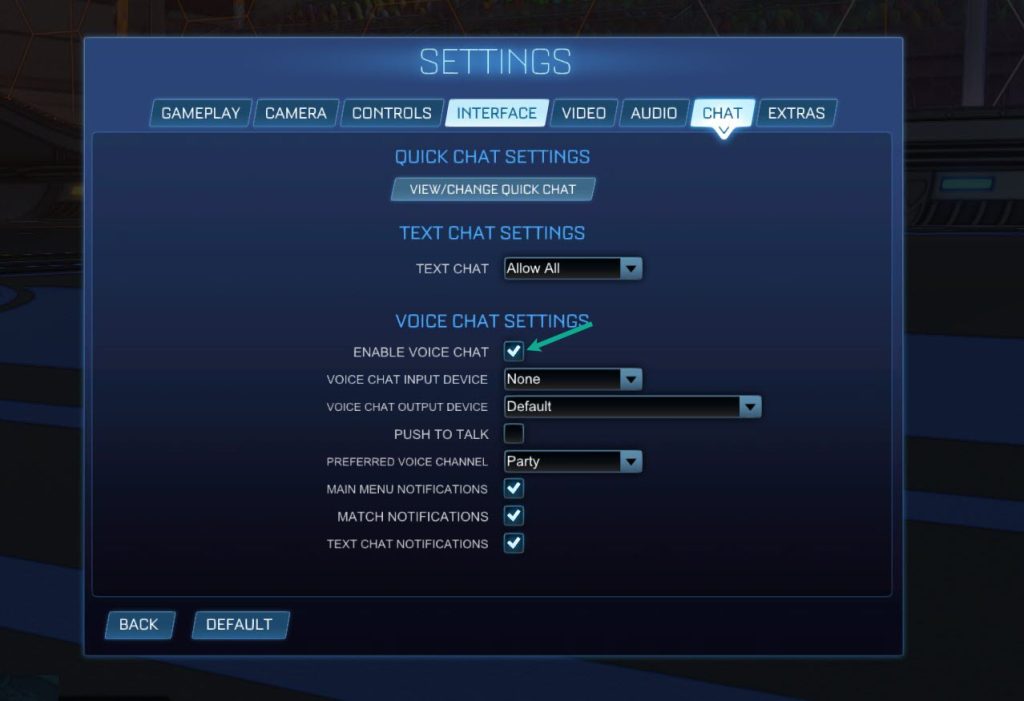
Players experiencing difficulty accessing text or voice chat settings in Rocket League are frequently encountering restrictions tied to the game’s parental control systems, known as Epic Account parental controls. When these features are active, they often override standard communication settings, preventing users from interacting with the broader player base. According to official documentation from Epic Games, these limitations are designed to comply with safety standards for younger users, effectively restricting social interactions based on the age settings linked to the account.
For players who find that the option to enable or customize text and voice chat is missing or grayed out, the primary cause is typically a restrictive setting within the Epic Games account management portal. This is not a technical glitch in the game client itself, but rather a server-side permission status. Players must verify their account status through the Epic Games account dashboard to determine if communication permissions are currently restricted by a parent or guardian account.
Understanding Parental Control Restrictions in Rocket League
The integration of Epic Account services into Rocket League brought a unified system for managing player safety. When an account is categorized as a “cabined account” or is subject to active parental controls, specific social features—including voice chat and text chat with players outside of a user’s friends list—are automatically disabled. The Epic Games support portal notes that these restrictions are applied to ensure a safe environment for minors. If your account is linked to a parent’s email address, you cannot bypass these settings without direct authorization from the parent or guardian who manages the account permissions.
If you are an adult player and believe your account is incorrectly flagged, you may need to verify your date of birth in your Epic Games account settings. Accounts that were created without a verified age, or those that fall under specific age thresholds, will default to the most restrictive communication settings. Updating your profile information or verifying your identity can sometimes trigger a review of these permissions, though access to full chat features remains contingent on meeting the platform’s age-of-consent requirements.
How to Adjust Your Communication Settings
To restore access to chat features, you must first navigate to the settings menu within Rocket League and then cross-reference those settings with your Epic Games account permissions. Start by opening the game and selecting Settings, then click on the Chat tab. If the options are visible but locked, hover over the setting to see if a tooltip indicates why the feature is unavailable. If the options are entirely missing, the restriction is almost certainly at the account level rather than the game client level.
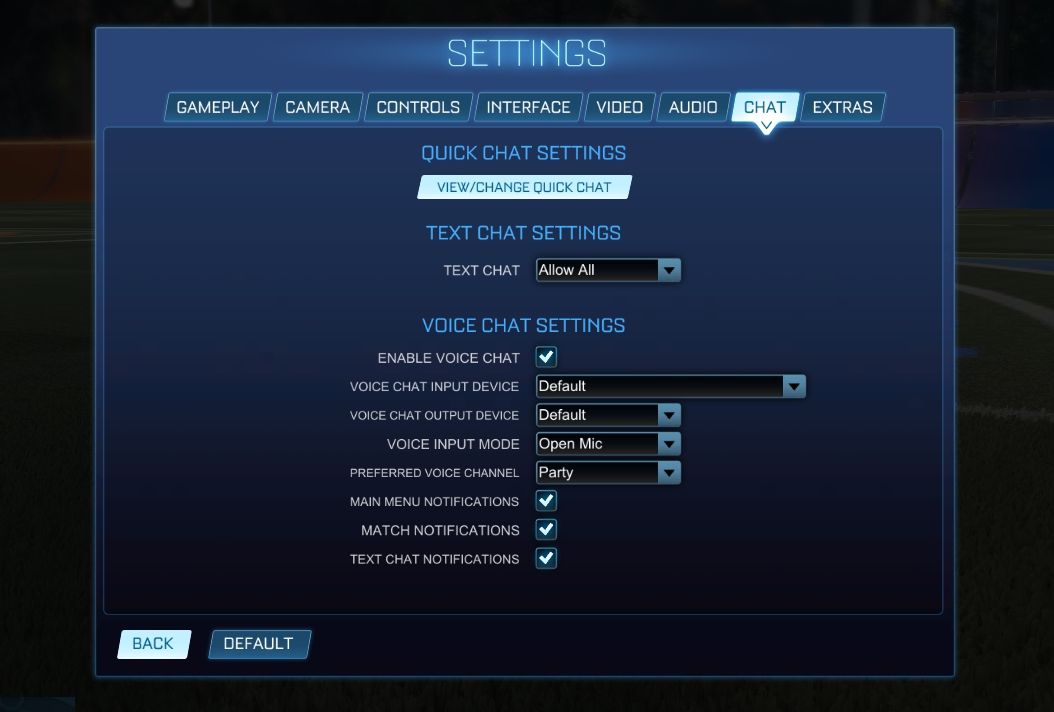
Once you have identified that the restriction is external, follow these steps to manage your permissions:
- Log in to the Epic Games Account Portal using your linked credentials.
- Navigate to the Parental Controls tab on the left-hand sidebar.
- Enter your parental control PIN to access the configuration menu.
- Adjust the Text and Voice Chat settings to “Friends Only” or “Everyone,” depending on your preferences and age eligibility.
- Save your changes and restart Rocket League to allow the server to refresh your account status.
Troubleshooting Persistent Chat Issues
If you have confirmed that your parental control settings are set to allow communication but are still experiencing issues, consider the possibility of a temporary server-side delay or a communication ban. In some instances, players who have violated the Epic Games Community Rules may have their chat privileges revoked as a disciplinary measure. These bans are distinct from parental control settings and are typically communicated via an in-game notification or an email to the address associated with your account.

To differentiate between a setting restriction and a ban, check if you can send messages to players on your Epic Friends list. If you cannot communicate with anyone at all, or if you have received a notification regarding your conduct, you are likely under a temporary suspension. For further assistance, players can open a support ticket through the Epic Games Help Center. Ensure you include your Epic Account ID and a description of the missing settings when submitting your request for the fastest resolution.
The next scheduled maintenance or update for Rocket League may reset certain client-side configurations, which can occasionally resolve display errors in the settings menu. Players are encouraged to check the official Rocket League X (formerly Twitter) account for real-time updates regarding server stability and known bugs that might affect social features. We welcome readers to share their experiences in the comments section below if these steps successfully restored their chat functionality.
Keep reading