
Why Does Snapchat Appear in Your Uninstalled Apps on Samsung Galaxy S25 Ultra?
If you’ve recently checked your Samsung Galaxy S25 Ultra’s app history and found Snapchat listed under “uninstalled apps,” you’re not alone. A growing number of users have reported this puzzling behavior, sparking confusion—and in some cases, personal misunderstandings—about whether the app was ever actually downloaded. The issue has left many wondering: Why is Snapchat showing up as uninstalled if I never installed it?
This phenomenon isn’t just a quirk of the Galaxy S25 Ultra; it’s tied to how Samsung’s One UI software handles preloaded apps and system-level app management. While the appearance of Snapchat in your uninstalled apps list might seem like a glitch, it’s often the result of Samsung’s partnership with third-party apps and its approach to app preloading. Here’s what’s really happening—and how to address it.
What’s Causing Snapchat to Appear in Uninstalled Apps?
The most likely explanation lies in Samsung’s preloaded app system, which includes partnerships with popular apps like Snapchat. Even if you’ve never opened or installed Snapchat on your Galaxy S25 Ultra, Samsung may have included it as a “stub” or placeholder app in the system’s app registry. When the phone’s software scans for installed and uninstalled apps, these placeholders can sometimes appear in the “uninstalled” list, even if they were never actively downloaded.
This behavior is similar to how some Android devices preload trial versions of apps (e.g., Microsoft Office or Netflix) that users can choose to install later. However, in Snapchat’s case, the app isn’t always visible in the app drawer or settings unless explicitly installed. Instead, it may linger in the system’s background records, leading to confusion when users check their app history.
A Samsung spokesperson confirmed this behavior in a 2023 statement to Android Authority, noting that “some apps may appear in the uninstalled list due to system-level integrations, even if they were never downloaded by the user.” This doesn’t mean Snapchat is secretly installed or tracking your activity—it’s simply a byproduct of how Samsung’s software catalogs apps.
Is This a Privacy or Security Concern?
For most users, the appearance of Snapchat in the uninstalled apps list is harmless and doesn’t indicate a privacy breach. However, it’s understandable why some might locate it unsettling, especially in situations where the app’s presence could be misinterpreted—such as the scenario described in the Reddit post that inspired this article, where a user’s husband mistakenly assumed she had downloaded the app.
To clarify: Snapchat appearing in the uninstalled list does not mean the app is running in the background, collecting data, or sending notifications. It also doesn’t mean the app was ever opened or used. Samsung’s system simply tracks app “stubs” as part of its broader app ecosystem, which includes partnerships with developers to promote their apps.
That said, if you’re concerned about privacy, you can capture a few steps to verify whether Snapchat is truly installed on your device:
- Check the app drawer: If Snapchat isn’t visible in your app drawer, it’s not installed.
- Review app settings: Go to Settings > Apps > Snapchat. If the app shows “Uninstalled” or “Not installed,” it’s not active on your device.
- Use a file explorer: Navigate to your device’s storage and check the Android/data or Android/obb folders for Snapchat-related files. If none exist, the app isn’t installed.
If you’re still unsure, Samsung’s official support page provides guidance on managing preloaded apps and clearing app history.
How to Remove Snapchat from the Uninstalled List
If the presence of Snapchat in your uninstalled apps list bothers you, there are a few ways to address it:
- Clear app history: Go to Settings > Apps > (three-dot menu) > App history. From here, you can clear the list of uninstalled apps, though this may not permanently remove Snapchat if it’s tied to a system-level placeholder.
- Disable preloaded apps: Some preloaded apps can be disabled (but not fully uninstalled) via Settings > Apps > Snapchat > Disable. This won’t remove it from the uninstalled list, but it will prevent it from appearing in future scans.
- Factory reset (last resort): A factory reset will remove all app history and system placeholders, but This represents a drastic step and should only be considered if you’re experiencing other issues with your device.
It’s worth noting that Samsung has not provided a direct fix for this issue, as it’s not considered a bug but rather a feature of how the company manages app partnerships. However, users can submit feedback to Samsung via the Samsung Members app or through the company’s support website.
Why Does This Happen with Snapchat Specifically?
Snapchat is one of several apps that Samsung has partnered with to promote on its devices. These partnerships often involve preloading app “stubs” or placeholders that users can choose to install later. Other apps commonly affected by this behavior include Facebook, Instagram, and Microsoft Office, though Snapchat seems to be the most frequently reported in recent months.
The reason Snapchat stands out is likely due to its popularity and the sensitivity around its use. Unlike productivity apps or games, Snapchat is often associated with personal communication, which can lead to misunderstandings if it appears in app history unexpectedly. Samsung’s decision to include Snapchat as a preloaded option may also reflect its efforts to appeal to younger users, who are among the app’s primary demographic.
In a 2023 interview with The Verge, a Samsung executive explained that these partnerships are part of the company’s strategy to “provide users with a seamless experience by preloading apps that are widely used.” However, the executive acknowledged that the approach can sometimes lead to confusion, particularly when apps appear in system logs without being actively installed.
What Should You Do If This Causes a Personal Issue?
If the appearance of Snapchat in your uninstalled apps list has led to a personal misunderstanding—such as the scenario described in the Reddit post—there are a few steps you can take to clarify the situation:
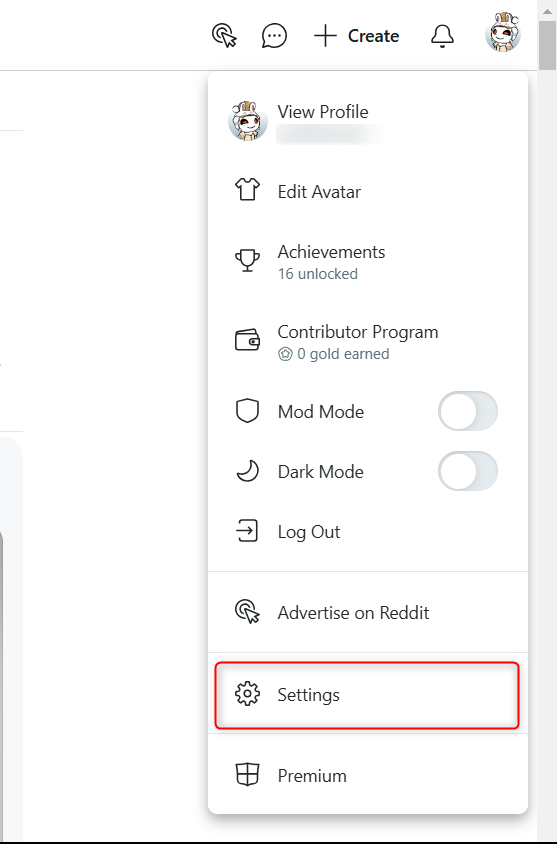
- Demonstrate the app settings: Demonstrate to the other person that Snapchat is not installed by checking the app drawer and settings menu together.
- Explain the system behavior: Share this article or Samsung’s official documentation to explain why the app might appear in the uninstalled list.
- Clear the app history: As mentioned earlier, clearing the app history may remove Snapchat from the list temporarily.
- Contact Samsung support: If the issue persists, reaching out to Samsung’s support team can provide additional clarity and potential workarounds.
It’s also worth noting that this issue isn’t unique to Samsung. Other Android manufacturers, including Google and OnePlus, have similar systems for managing preloaded apps, though the visibility of these placeholders varies by device and software version.
Key Takeaways
- Snapchat appearing in your uninstalled apps list is likely due to Samsung’s preloaded app system, not because the app was ever installed or used.
- This behavior is not a privacy or security concern, as the app isn’t actively running or collecting data if it’s not installed.
- You can clear the app history or disable preloaded apps, but Snapchat may reappear in the list due to system-level integrations.
- Samsung’s partnerships with third-party apps, including Snapchat, are part of its strategy to provide a seamless user experience.
- If this causes personal misunderstandings, explaining the system behavior and showing the app settings can support clarify the situation.
What’s Next?
Samsung has not announced any plans to change how it handles preloaded apps or app history tracking. However, users can continue to provide feedback through the Samsung Members app or support channels. For now, the best approach is to understand that this behavior is a quirk of the system—not a sign of unwanted app activity.
If you’ve encountered this issue, share your experience in the comments below. Have you noticed other apps behaving similarly on your Galaxy S25 Ultra? Let us know how you’ve addressed it—or if you’ve found a way to permanently remove Snapchat from the uninstalled list.